
Insights · Practical workflow examples
8 workflow automation examples for business teams
Eight everyday handoffs across sales, purchasing, finance and operations. Follow the trigger, the work and the check that makes each result useful.
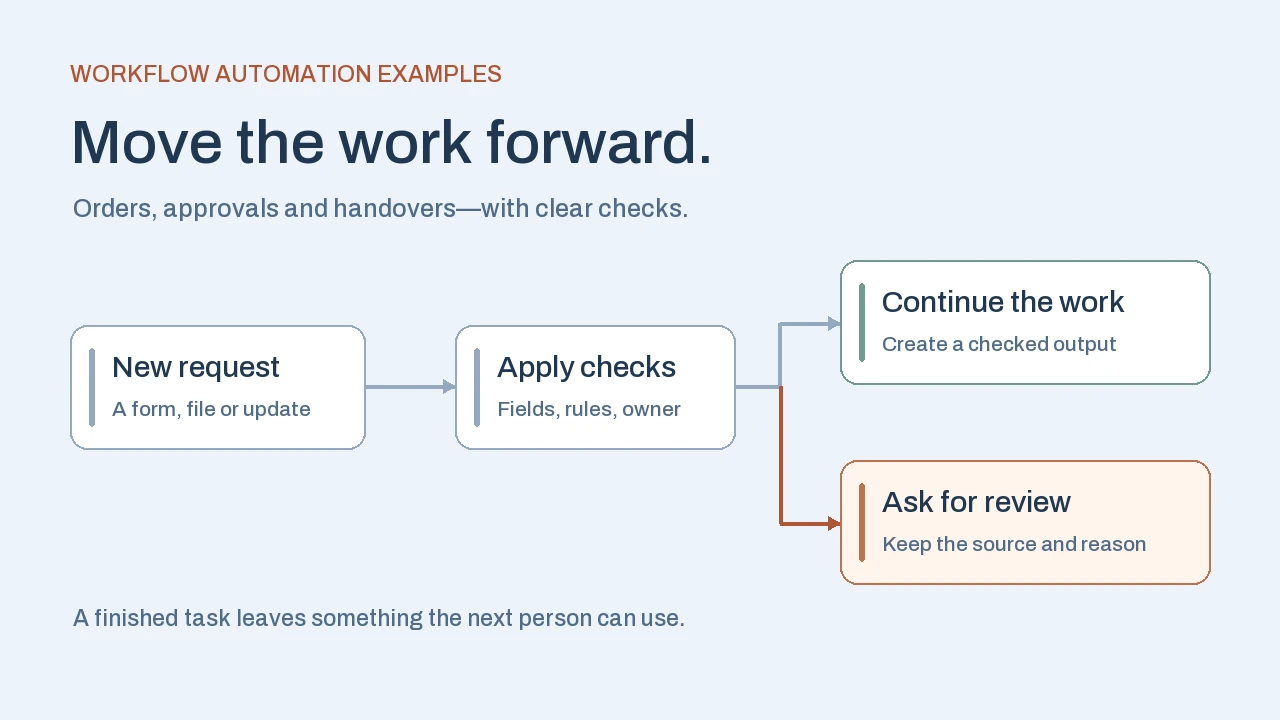
Workflow automation examples include turning customer orders into checked ERP drafts, routing purchase approvals, flagging invoice differences and assigning a sales handover. The software moves repeatable work between people and systems. A useful design also makes clear who handles exceptions and what proves the task is finished.
1. Customer orders → checked ERP drafts
Illustrative examples. The workflows below are proposed patterns for business teams, with invented records where needed. They show the work and the checks to discuss before implementation.
A distributor receives a customer purchase order for 12 boxes. Someone normally reads the attachment, finds the item code and retypes the line into the ERP. Automation can capture the document, identify the customer and item, check for a previous submission and prepare a sales-order draft.
The important detail is the unit. If the customer says “boxes” and the ERP sells individual items, the workflow needs a confirmed pack quantity. Recognizing the number 12 does not establish how many items to order.
- Source
12 boxes requested
Keep the original order and the customer’s wording beside the extracted fields.
- Review
How many per box?
No confirmed pack quantity is available. Assign the question to the order desk.
- After confirmation
One checked draft
The desk confirms 10 items per box. Prepare 120 items and retain that confirmation.
Acceptance check: an unconfirmed unit stays in review. Resending the same customer PO finds the existing record rather than creating another order.
The order desk still resolves unclear specifications and releases the accepted draft under the company’s rules. Measure the work left after extraction: corrections, customer questions and duplicate checks. Our order entry automation guide follows those decisions in more detail.
2. Purchase requests → routed approvals
A complete purchase request can trigger an approval workflow. The request includes the supplier, amount, currency, cost center and supporting quote. Rules select the approver, record the decision and remind the responsible person when the request is still pending.
This removes the repeated question “Who has it now?” The requester can see whether the work is awaiting information, awaiting approval or ready for purchasing to act. Approval authority remains a business decision: a notification or an expired deadline should never be mistaken for approval.
For example, Microsoft distinguishes creating an approval from waiting for its response. The distinction matters when designing what may happen next. Test the changed request: if its amount or supplier changes after approval, the workflow must apply the agreed re-review rule. The purchase order approval workflow guide covers versions, delegates and exceptions.
3. Supplier invoices → a finance exception queue
An invoice arrives in the agreed intake channel. The workflow captures its reference, supplier, currency, line quantities and totals, then compares them with the purchase order and receipt information. Matching records can proceed to the next permitted review step; differences receive a reason and an owner.
Suppose the invoice bills 50 units while the warehouse receipt shows 40. The useful output is a linked exception for accounts payable, with both quantities visible. Finance can establish whether the remaining goods are still in transit, the receipt is incomplete or the invoice needs correction. An extraction model cannot settle that commercial question from the invoice alone.
Test the duplicate and the mismatch: a resent invoice must link to the existing review, and an unresolved quantity difference must stay visible. Keep invoice validation, posting authority and payment release as separate responsibilities. Start with your accounting system’s matching features if they already cover the job. Our document processing automation guide follows intake, extraction, review and ERP handoff in more detail.
4. Won deals → a delivery handover
Marking an opportunity as won can start a handover to the delivery team. The workflow collects the accepted scope, customer account, delivery contact, agreed dates and documents, then creates the relevant project or onboarding tasks.
A CRM status alone is a weak instruction to start delivery. The team might still be waiting for a signed order, a confirmed billing account or someone to own the work. A useful rule sends incomplete handovers back to the salesperson with the missing fields identified. It also links delivery tasks to the opportunity so colleagues can find the original agreement.
Test the second status change: moving a deal out of won and back again should find the existing handover. Check that a changed scope reaches the delivery owner for review. The outcome is a usable work package with an accountable recipient, rather than another alert announcing a sale.
5. Supplier updates → buyer follow-up tasks
A supplier confirmation changes a promised dispatch date. The workflow links the message to the purchase order, compares it with the current commitment and creates a buyer task showing what changed. When no confirmation arrives by the agreed follow-up date, a scheduled check can add the order to the buyer’s queue.
The buyer reviews the impact on stock, transport and customer commitments. An AI step may help extract a date from variable supplier wording, but an unclear reference or ambiguous date needs a review path. The workflow can prepare a follow-up draft while the buyer decides what to ask or promise.
Test two updates to the same order: the newer message should remain visible alongside the previous commitment, without silently replacing the buyer’s decision. Our workflow automation vs RPA guide uses a supplier confirmation to compare how an approved update can reach the ERP.
6. Customer requests → an owned support queue
A new customer request triggers a case with a reference, the original message and any known customer or order context. Rules route a billing query to finance, a delivery query to customer service and a technical issue to the support team. An unclassified request stays in a monitored queue.
AI classification can suggest a category when customers describe the same problem in different ways. Keep the original wording visible and let the team change the category or urgency. A customer mentioning “late delivery” may need a status update, or may be reporting a wider problem that a simple keyword rule misses.
Test the request nobody recognizes: it must have an owner and a clear escalation path. Measure reassignment and unanswered cases as well as routing speed. Automatically assigning a ticket is an administrative step; approving compensation or making a new delivery promise requires its own rules.
7. Confirmed hires → assigned onboarding tasks
An HR-approved start record can create tasks for HR, IT and the manager. The workflow uses the confirmed start date, role and location to request equipment, schedule orientation and assign a preparation checklist. Each team sees what it owns and which tasks are waiting on another step.
Access needs a defined authorization path. A job title typed into an intake form should not automatically grant broad permissions. The authorized IT owner confirms the appropriate access, while HR controls changes to the employment record. Keep personal information limited to what each task actually needs.
Test a postponed start: existing tasks should reflect the approved change without creating a second onboarding process. Tasks that are no longer needed must be canceled or reviewed. If the HR system already manages this sequence, configuring its existing workflow may be enough.
8. Operational data → a morning exception brief
A scheduled workflow can gather overdue approvals, purchase orders needing follow-up and failed system updates into one morning brief. Each entry includes its source record, the person responsible and a specific next action. Routine items that need no attention can stay in the source system.
Data freshness matters more than a polished summary. If the warehouse feed has not refreshed, a blank list of exceptions cannot establish that everything is on track. Show when each source was last read and distinguish an unavailable source from a completed check that found no issues.
- Purchasing · checked 08:00
- PO P-208: dispatch confirmation overdueBuyer: follow up with the supplier. Open the purchase order and last confirmation.
- Approvals · checked 08:00
- Request R-317: waiting for a decisionAssigned approver: review the current request and supporting quote.
- Warehouse · refresh failed
- Stock exceptions not assessedData owner: restore the feed. Operations: check the source before relying on stock figures.
Test an unavailable source: the brief must expose the gap and still explain which checks succeeded. If AI drafts the narrative, give it the checked records and source links, and have the operations owner review the summary before sharing it.
Decide which steps need AI
These workflow automation examples use several ways to start work. A request or status change can trigger an event-based flow; a person can start one from a button; a recurring check can run on a schedule. Microsoft’s cloud flow overview describes those three patterns.
Use ordinary rules for known fields, approval routes, dates and required information. Consider AI where the input varies: extracting fields from different document layouts, suggesting a support category or drafting an explanation from selected records. An AI suggestion still needs validation appropriate to its consequence. More advanced interpretation does not remove the need to decide who may approve a purchase or change an ERP record.
For any update, agree how to establish completion. Microsoft’s retry guidance explains how a missing response can cause an already completed action to be repeated. Keep a reference to the request and check the destination before retrying an uncertain write.
Choose one workflow and define its finish line
Start with a recurring task your team can explain, a source you can access and someone who owns the result. Check the current CRM, ERP or Microsoft 365 setup first. A native rule may solve a reminder or assignment problem; a separate application becomes useful when people need a shared review workspace, while integration work connects the agreed systems.
Before building, collect ordinary examples and the awkward ones: missing information, a resend, a changed decision, an unavailable approver and a failed system update. Agree what should happen in each case. For an order-intake pilot, “document read” is too early a finish line. A better one is “one accepted draft, or a review item with its source, reason and owner.”
- Define the input: where it arrives and which record identifies it.
- Define the decision: which rule applies and who handles uncertainty.
- Define the output: the record, task or checked update the next person needs.
- Measure the remaining work: review time, waiting, corrections and recovery, alongside completed volume.
Use the automation ROI guide to connect those observations to implementation and running costs. If several systems and handoffs are involved, our business process automation services explain how we scope, build and test that work with your team.
Frequently asked questions
What is a simple example of workflow automation?
A complete request form can create one task, assign its owner and notify that person. Define the required fields and check for a previous submission before creating the task. A useful result is an assigned item with its source, not just a notification.
Can we automate a workflow without AI?
Yes. Known fields, dates, status changes and approval routes often work with ordinary rules. Consider AI when inputs need interpretation, such as extracting information from varied documents or suggesting a category for a customer request. Validate the output before it affects a business decision.
Which workflow should a small business automate first?
Choose a recurring task with clear inputs, stable rules, an accessible source and an owner who can handle exceptions. First check what your existing tools can do. Measure review and recovery work during a limited pilot before expanding the scope.
Does a successful automation run mean the business task is finished?
Check the actual result. A run may have sent an approval request without receiving a decision, or prepared an ERP draft that still needs acceptance. Define the business finish line and verify the destination record or assigned review item.
Apply this to your workflow
Which handoff keeps your team waiting?
Bring one recurring task, the systems involved and a redacted example of an exception. We can discuss what to automate, what your team should review and how to check the result.
Discuss your workflow Explore business process automation services