
Insights · Documents into checked records
Document processing automation: from file to ERP
Follow an invoice from intake to a checked ERP record. Choose an extraction approach, resolve differences and account for the work still waiting.
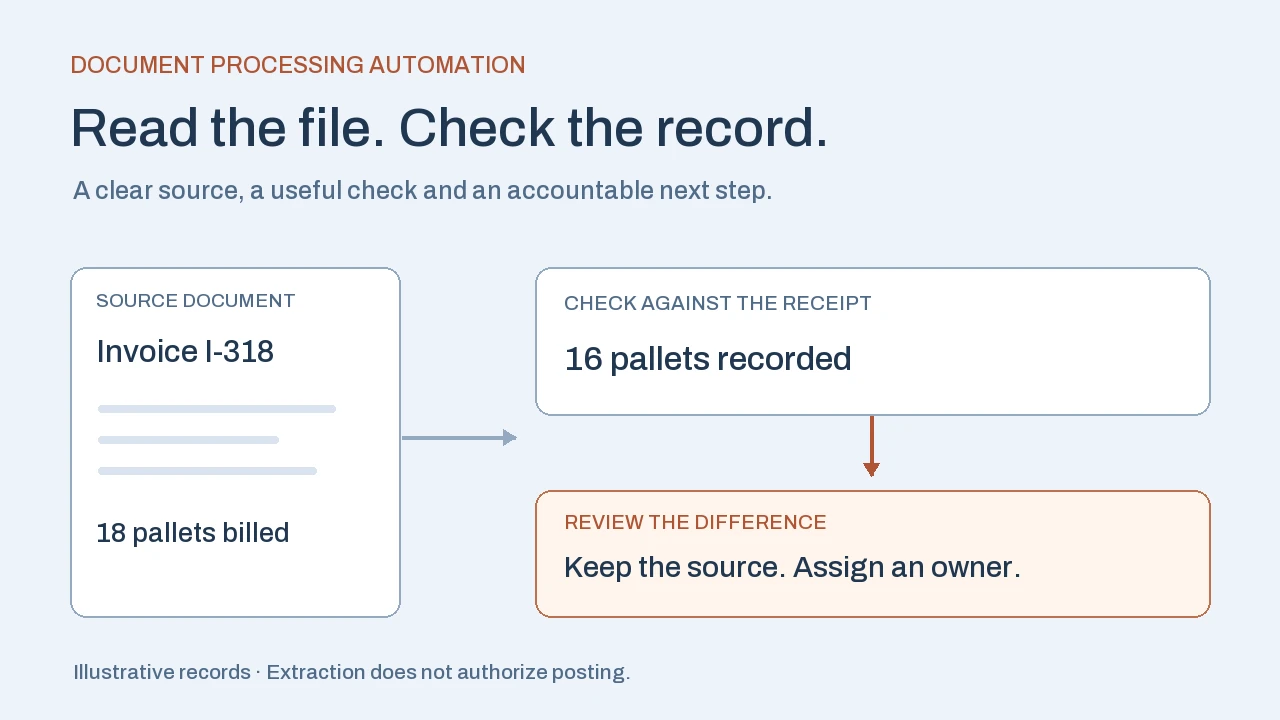
Document processing automation captures files, extracts useful fields, checks them against business rules and sends accepted data to the next system. Start with one document type and define what a usable result looks like. Correctly reading a number is only one part of completing the task.
A correctly read invoice can still need review
Illustrative example. A supplier invoice bills 18 pallets against purchase order P-208. The warehouse receipt currently records 16 pallets. The extraction reads both numbers correctly. Finance still needs to establish whether two pallets arrived later, the receipt is incomplete or the supplier billed too much.
A useful workflow brings the invoice, purchase order and receipt into one review. It identifies the quantity difference, assigns it to accounts payable and holds the invoice from automatic posting. It preserves the supplier’s original quantity instead of changing it to make the records match.
- Invoice
18 pallets billed
Keep the source document and extracted line together.
- Warehouse receipt
16 pallets recorded
Show the receipt reference and when it was last checked.
- Finance review
Resolve the difference
Check the delivery evidence before the permitted posting step.
Acceptance check: correct extraction may create a review task. It does not authorize posting or payment.
Suppose the warehouse confirms a second delivery and updates the receipt to 18. The workflow can rerun the match against that updated record, retain the resolution and continue under the company’s posting rules. If the difference remains unexplained, the invoice stays with its owner.
This is the practical value of document processing automation: less repeated reading and rekeying, with the evidence needed for the next decision. The result depends on the surrounding records and responsibilities as much as the extraction model.
What document processing automation actually does
The full process takes a document from an agreed intake channel to a usable record or an owned exception. Optical character recognition (OCR) converts text in a scan or image into machine-readable text. Extraction identifies useful fields, such as an invoice reference or line quantity. Classification determines what kind of document arrived; splitting separates documents combined in one file.
Intelligent document processing (IDP) commonly combines these capabilities with AI, validation and workflow steps. Product labels vary, so ask what the proposed system actually does with your files. A searchable PDF, a spreadsheet of extracted fields and an accepted ERP transaction are different deliverables.
A complete design needs five connected stages:
- Capture: register the received file, source, time and document reference. Detect unreadable, password-protected or unsupported files and give them a visible status.
- Classify and extract: identify the document type, relevant pages, header fields and line items. Keep values connected to their source locations where the tool supports it.
- Validate: check required fields, arithmetic, units and relationships to current business records.
- Review: give a person the original document, proposed values and a specific reason for the exception.
- Deliver and confirm: send the approved data to the destination and record its response, reference and resulting status.
For example, Microsoft’s document automation toolkit separates extraction, workflow orchestration, manual review and queue storage across several components. That illustrates why choosing an OCR engine alone does not specify the whole process.
Choose the simplest route for your documents
Start by checking whether the information needs to come from a document at all. A supplier portal export, agreed spreadsheet, structured order feed or native accounting import may already provide reliable fields. Reading a PDF copy adds work when an accessible structured source contains the same information.
For a small number of stable layouts, a configured parser or template-based extraction can be sufficient. Test what happens when a supplier moves a column, adds a discount line or sends a scan. A template that works on one clean sample needs evidence across the variations you actually receive.
AI extraction is worth testing when layouts, wording or document combinations vary enough to make fixed rules costly to maintain. Ask it to return the fields the process needs, with missing information clearly identified. A plausible value inferred from surrounding text should not silently replace an absent invoice number or delivery date.
Use an existing document product or your ERP’s native matching features when they cover the job. Custom work becomes more relevant when the process needs unusual cross-system checks, a specific review experience or recovery that existing tools cannot provide. The document engine can still be a purchased component.
For customer purchase orders specifically, our order entry automation guide explains item mapping, units and checked order drafts. For a wider choice of starting tasks, see the workflow automation examples.
Set the checks before choosing a confidence threshold
Write down which errors would make the output unusable. For invoices, the supplier identity, invoice reference, currency, quantities and totals may need different checks from a descriptive comment. Agree which fields must be present, which records they must match and which differences require a decision.
A confidence score helps identify uncertain extraction. It does not tell you whether an invoice is payable. Microsoft documents estimated confidence for extracted predictions and the use of human review. Available scores also depend on the model and field. Choose thresholds from tests on your documents and the consequences of an error, rather than adopting a universal percentage.
In our example, confidence in “18 pallets” could be high while the business match still fails. Conversely, a faint scan may need transcription review even when the purchase order and receipt agree. Keep those two reasons distinct so the reviewer knows what to resolve.
The review screen should show the relevant page or line, the extracted value, the conflicting record and the requested action. Allow a correction with a reason and retain the previous value. A queue called “AI failed” leaves the person to repeat the investigation; “invoice quantity 18, receipt quantity 16” provides a starting point.
Data handling also affects the choice. Confirm who can read source files and review records, where files are processed, what is retained and how deletion works. Limit extraction and reviewer access to the information the process needs. A supplier certificate workflow and an employee document workflow may require different permissions even if they use the same engine.
Track every document through the system handoff
Assign an internal reference at intake and link it to the business document identity. A resent invoice should find the existing item. A corrected invoice should retain its relationship to the earlier version and follow the agreed revision rule. A file fingerprint can help find an identical attachment, but it will not by itself identify the same invoice saved as a different PDF.
After writing to the ERP, keep its accepted record ID and status. A network timeout creates a different problem: the ERP may have accepted the request even though the workflow did not receive the response. Microsoft’s retry guidance explains how repeated non-idempotent operations can create unintended effects. Design retries so the same business request can be recognized and recovered without creating another transaction.
Our ERP integration challenges guide covers ownership and failed-update recovery. At the document level, the team also needs to know that every received file is accounted for.
- 12 accepted
- Destination record confirmedEach item has an ERP reference and the expected status.
- 3 in review
- A business or extraction question remainsEach item has an owner, source and reason.
- 2 duplicates
- Linked to existing itemsNo additional ERP transaction was created.
- 1 failed
- Unsupported file needs attentionThe intake item remains visible for recovery.
- 2 waiting
- Received, processing not startedQueue age is visible so waiting work cannot disappear.
Reconciliation: 12 + 3 + 2 + 1 + 2 = 20. Split child documents and page counts need their own totals; this snapshot counts intake items only.
Agree who investigates old waiting items and failed handoffs. Keep a record of the rules or model version used, the reviewer’s changes and the final destination response. That history makes a disputed result easier to explain and a changed configuration easier to evaluate.
Run a pilot your operations team can judge
Choose one document type, one intake channel and one destination. Collect representative, permitted samples: clean digital files, poor scans, unfamiliar layouts, missing pages, repeated attachments and known business discrepancies. Keep a separate test set so configuring the extraction and evaluating it do not rely on exactly the same examples.
Begin in a review-only or shadow mode, comparing proposed results with the team’s checked answers. Test the complete path through the review queue and destination, including a deliberately failed handoff. A demonstration using a handful of clean files cannot establish unattended production performance.
- Check critical fields separately. Record correct, incorrect and missing values. A high overall average can hide an unreliable supplier reference or line quantity.
- Measure the work left. Include correction, investigation, waiting and recovery effort, alongside time spent typing.
- Reconcile the intake. Every file must have a current state; accepted records and duplicates must have verifiable references.
- Test change and recovery. Try a new layout, a revised document, an unavailable matching record and a timeout after destination acceptance.
Set the acceptance criteria with the process owner before reviewing the results. Expand only when the agreed error limits, review workload, completeness and recovery tests support it. Our business process automation ROI guide explains how to compare remaining work with implementation and running costs without counting released staff time as automatic cash savings.
When extraction, business checks and system handoffs need to work together, our business process automation services cover that connected workflow. The useful starting scope is a specific document problem and a result your team can verify.
Frequently asked questions
Is document processing automation the same as document generation?
They address different directions of work. Processing takes an incoming file and extracts or checks its information. Generation creates an outgoing document from data or a template. A business workflow can use both, but success needs a separate definition for each.
Can OCR alone update our ERP?
OCR returns recognized text. An ERP update also needs field mapping, business validation, permissions and an integration that confirms the result. An existing document product or ERP feature may provide several of these steps together; check the actual scope.
What accuracy should we expect?
Test representative documents and measure the fields that matter to your process. Separate correct, incorrect and missing values, along with review effort and accepted destination records. A vendor headline or a model confidence score does not establish your end-to-end performance.
Will the system learn automatically from every correction?
That depends on the product and configuration. Recording a correction does not necessarily retrain an extraction model or change a business rule. Confirm what is stored, how changes are approved and how performance is checked before an updated configuration is released.
Apply this to your workflow
Where do your documents turn into manual work?
Bring one document type, the destination system and a redacted example that needs review. We can discuss the extraction, checks and handoff your team needs.
Discuss your document workflow Explore business process automation services