
Insights · Workflow design and ERP access
Workflow automation vs RPA for business teams
Follow a supplier confirmation from inbox to ERP. Compare the write options and see how to handle a save with an uncertain result.
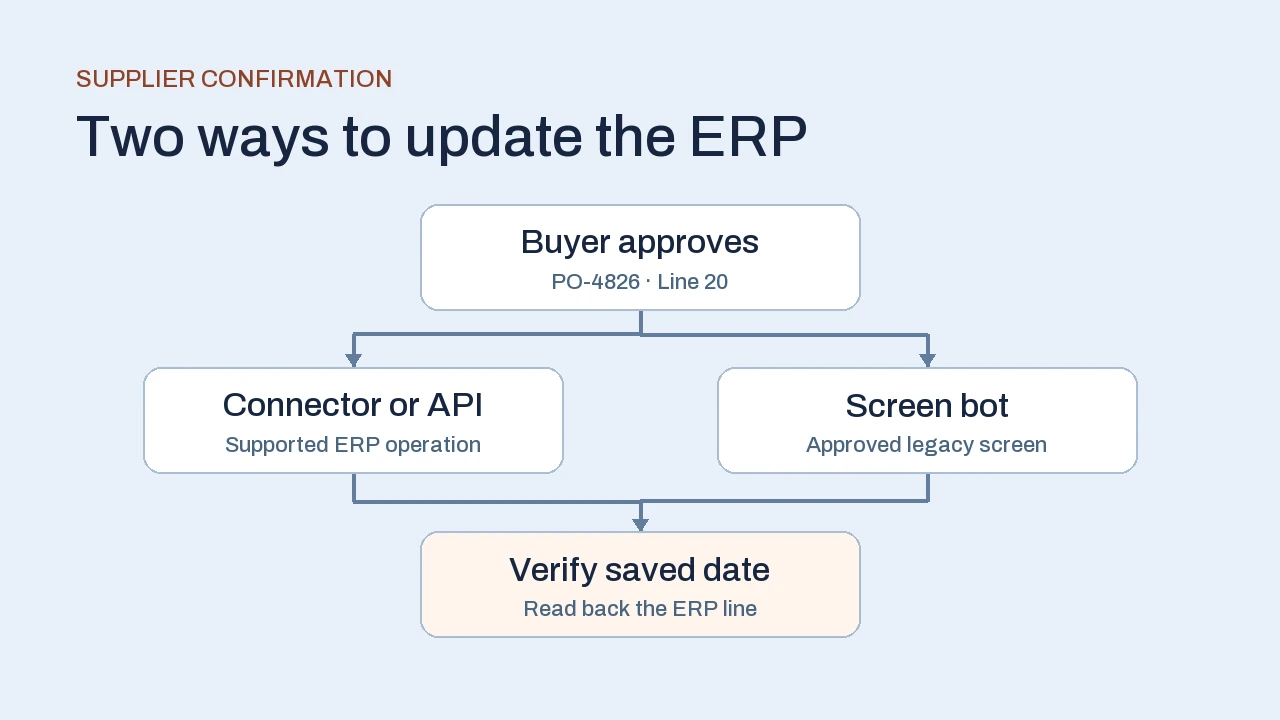
When comparing workflow automation vs RPA, separate the process from the task. A workflow coordinates intake, approvals and exceptions. Robotic process automation can take care of a repeatable screen step inside that workflow. For an ERP update, choose the write method your team can operate and verify.
Separate the workflow from the screen task
Workflow automation coordinates a process. It starts when something happens, checks what should come next, routes work to people or systems, and keeps track of the outcome. Robotic process automation (RPA) can perform a repeatable task through an application's user interface, such as finding a purchase order and entering a confirmed date. A desktop flow can locate fields with selectors, and a cloud workflow can call a desktop flow as one of its steps. See Microsoft's guide to desktop UI elements and its Desktop flows connector documentation.
Start by finding the work that causes the delay. If a request sits for days because nobody knows who owns it, automate the handoff and make the queue visible. If ownership is clear and a clerk spends the morning copying approved values between screens, investigate that one step. Both problems can exist in the same process.
Follow one supplier confirmation into the ERP
Illustrative example. A supplier replies to purchase order PO-4826 and confirms November 18 for line 20, three days later than requested. The procurement team wants the confirmed date recorded on that line after the buyer accepts the change. It also needs to know which confirmations are still waiting for a decision.
The workflow captures the supplier message and matches the supplier, PO number and line. It routes the changed date to the assigned buyer with the original message and the current ERP record. If the PO or line cannot be matched confidently, procurement checks it before any update. Once the buyer accepts the date, the workflow sends a specific instruction to the approved write path. The ERP remains the record that procurement checks for the confirmed date.
- 01 · Route
Match and review
Check the PO and line. Send the later date to the buyer for approval.
- 02 · Execute
Save the date
Use an approved ERP connection or a bot scoped to the update screen.
- 03 · Verify
Check line 20
Read back the saved value. Assign an owner if the outcome is uncertain.
Use one record to make this division concrete. Procurement owns the matching and approval rules. The ERP owner decides which update method is allowed and how to verify the result. The workflow records both the approval and the final status so another buyer can see where the item stopped.
Choose how the ERP receives the update
Check what the ERP supports for this exact field on this exact version. A connector that can list purchase orders may have limited write access. Test a line-level update and a lookup of the saved value with the permissions the pilot will use. The options below assume the buyer has already accepted the new date.
| Write path | When to choose it | What to verify |
|---|---|---|
| Connector or API | The supported operation can update the correct PO line. | Permissions, response details and a read-back of the saved field. |
| Native import | The ERP supports the field in a batch import and the delay is acceptable. | Row-level results and a reliable match to the PO line. |
| RPA screen step | A stable, approved screen supports the operation and direct access is limited. | Record identity, screen changes, save confirmation and recovery after interruption. |
| Manual queue | Volume is low, inputs vary widely or an automated write is hard to verify. | Clear ownership, queue age and a record of the ERP update. |
If a screen bot is appropriate, give it the approved PO, line and date. Have it confirm the supplier and current order state before writing. A changed status or an unexpected dialog should stop the run and return the item for review. Keep the original email and buyer decision in the workflow record so the procurement team can finish the task if the bot stops.
Factor in how quickly the team can respond when a screen, permission or file format changes. Compare the cost of keeping the screen step running with the time people spend on the manual queue. For more on system ownership and where integration failures show up, see our guide to ERP integration challenges.
Handle an update with an uncertain result
Suppose the bot clicks Save and the session disconnects before the confirmation appears. The date may already be stored. Mark the item needs verification, keep the reference and attempted value, and pause automatic retries. The same situation can occur when an API call times out or an import result arrives late.
Look up the PO and line in the ERP and compare the confirmed date with the approved value. Check the ERP audit entry if the business needs proof of who made the change. If the date is present and the evidence meets your rule, close the item. If the old date is still there, allow a controlled retry once the earlier attempt is known to have finished and the approval still applies. If the record is ambiguous or a newer confirmation has arrived, send it back to procurement. A supplier who resends an identical confirmation should reuse the existing item. A genuinely revised confirmation should get its own review.
Decide what the pilot must prove
If you are still choosing the task, explore our workflow automation examples for business teams. They compare the inputs, review points and useful outputs of eight everyday handoffs before you select an execution method.
Start with one supplier group, one supported confirmation format and one ERP field. Walk through ordinary and changed dates with a buyer and the ERP administrator. Use a test environment where available. Agree in advance on the evidence required to mark an item complete and which team takes each exception.
- Match the record. Try an unknown PO, a different supplier with a similar reference, and an order that closed after approval. Verify that the item is held for review.
- Recover a write. Simulate an expired session, an unexpected dialog and a lost response after Save. Verify that someone can establish the final state without replaying the update blindly.
- Handle repeated messages. Deliver the same confirmation twice, then send a revised date. Verify that the duplicate shares a work item and the revision gets a new decision.
- Measure the remaining work. Compare active handling time, time waiting for approval, the share sent for review and the cost of supporting the write path.
A pilot can be worth keeping even if the final entry stays manual. In this example, a buyer who can see every outstanding confirmation already has better information for planning. Expand the write step once the team can verify outcomes and the volume justifies the effort. Use the automation ROI guide to compare implementation and support costs with the work the pilot actually removes.
Frequently asked questions
Can workflow automation and RPA work together?
Yes. A workflow can validate a request, wait for a buyer to approve it, and send one instruction to a screen bot. The bot returns a result so the workflow can verify completion or send the item for review.
When should we use RPA for a legacy ERP?
Consider it when the team has permission to automate a stable screen, a supported connector or import cannot cover the step, and there is a way to check that the ERP stored the intended value. Test the support effort alongside the time saved.
What should happen if the bot loses its session after saving?
Mark the item for verification and pause retries. Look up the exact ERP record before attempting another update. If the state or the approval is uncertain, assign the item to its owner.
Do we need AI to automate supplier confirmations?
Start with rules if suppliers use a predictable format. Variable messages may justify an extraction step, with a review path for uncertain references or dates. The buyer approval and ERP verification rules still apply.
Apply this to your workflow
Which part of your workflow is worth automating?
Tell us what arrives, where your team reviews it, and which system needs the update. A redacted example can help us define a pilot and what it should prove.
Discuss your automation workflow Explore business process automation services